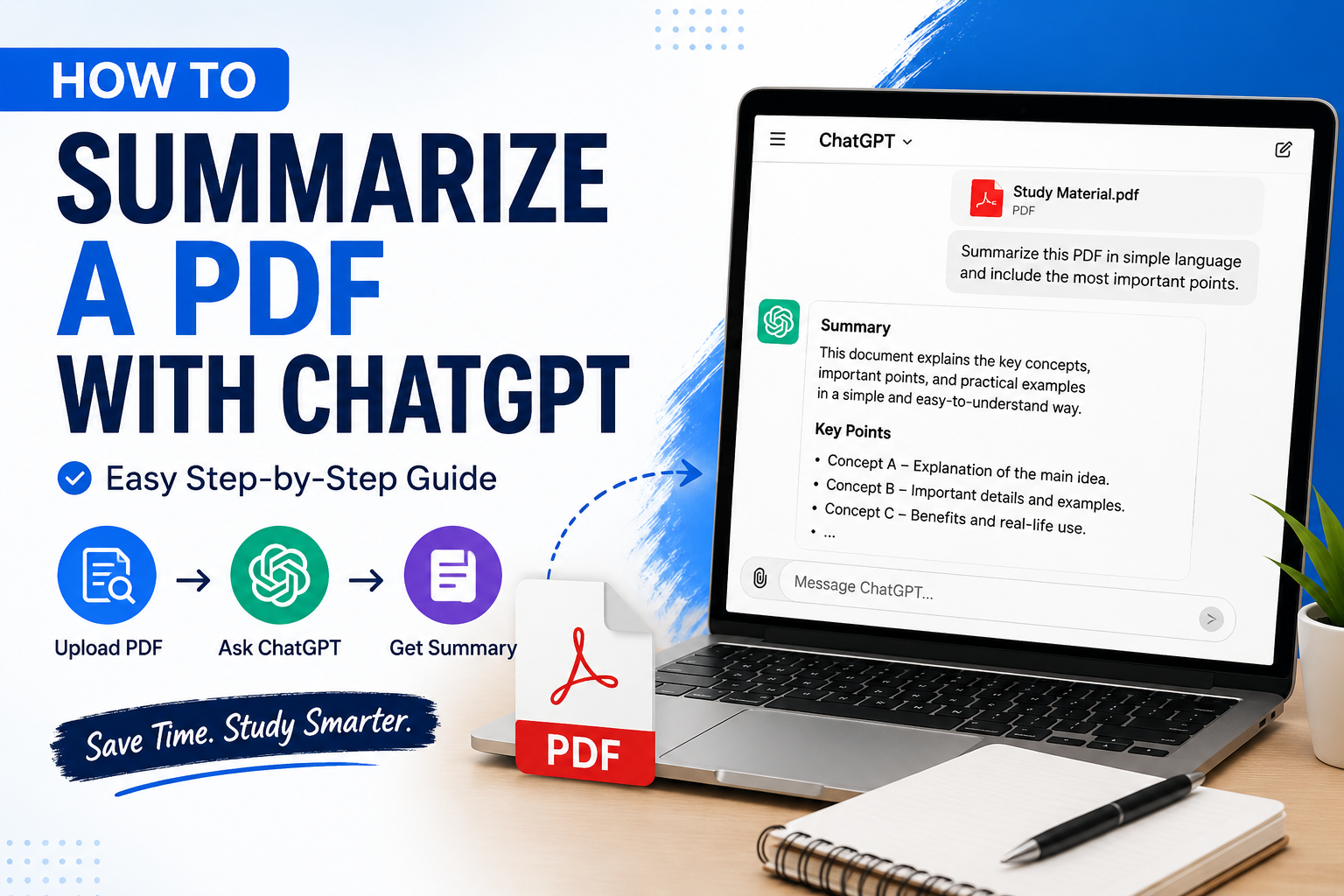
How to summarize a PDF with ChatGPT is a simple way to turn a long document into a shorter, easier-to-understand summary.
Have you ever opened a PDF and then kind of realised it has 50, 100, or honestly even more pages? 😅
Like, reading everything from start to finish can take forever, especially if you’re studying, researching, or trying to get a grip on a longer document.
How to summarize a PDF with ChatGPT? It’s a simple way to understand long documents quickly. ChatGPT can summarize important points, extract key information, and explain difficult sections in simple language.
ChatGPT can assist with summarizing a PDF, and it can basically turn that huge text into simpler notes, the main ideas, or even direct answers to particular questions. It supports PDF uploads, and OpenAI says document summarization and pulling out specific info from PDFs are part of the supported file-analysis tasks.
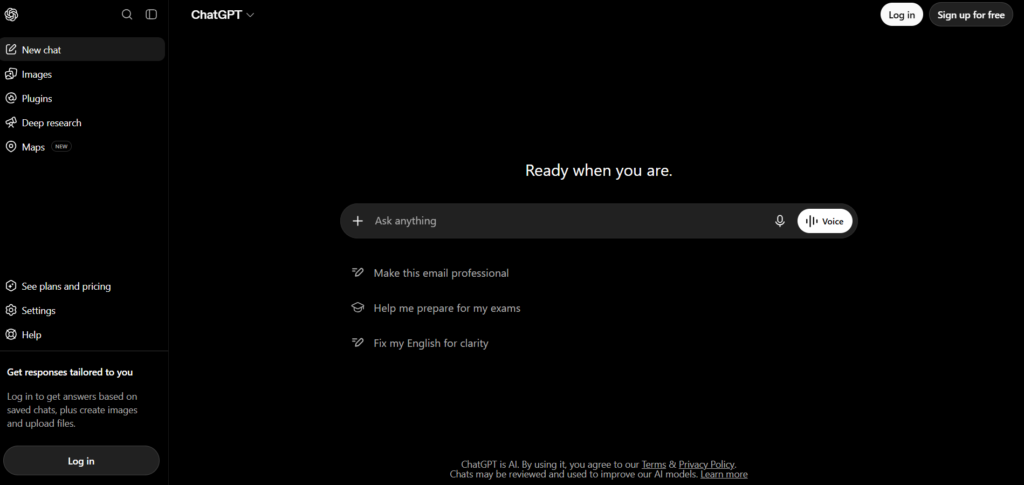
In this guide, I’ll walk you through how to summarize a PDF using ChatGPT step by step, and I’ll also include handy prompts you can copy and use right away.
What Can ChatGPT Do With a PDF?
ChatGPT can do much more than just summarize a PDF. You can upload a PDF and ask ChatGPT to summarize it, extract important points, find specific information, explain difficult topics, analyze tables or data, create study notes, generate questions, and rewrite complex content in simple language. This makes it useful for students, researchers, professionals, and anyone who needs to understand a long document quickly.
- Summarise the whole PDF,
- explain a hard section in simple language,
- pull out the most important points, make study notes,
- find info about a particular topic,
- create questions and answers, turn the material into bullet points, explain a specific chapter, or even build a revision guide.
How to Summarize a PDF With ChatGPT?
How to summarize a PDF with ChatGPT is a simple way to turn a long document into a shorter, easier-to-understand summary.
Step 1: open ChatGPT.
Do it on the web or in the mobile app, then just start a new chat. You don’t really need to set up some complicated prompt, or anything extra. If you want a basic summary, a simple instruction is enough, even if it looks kind of plain.
Step 2: Upload your PDF.
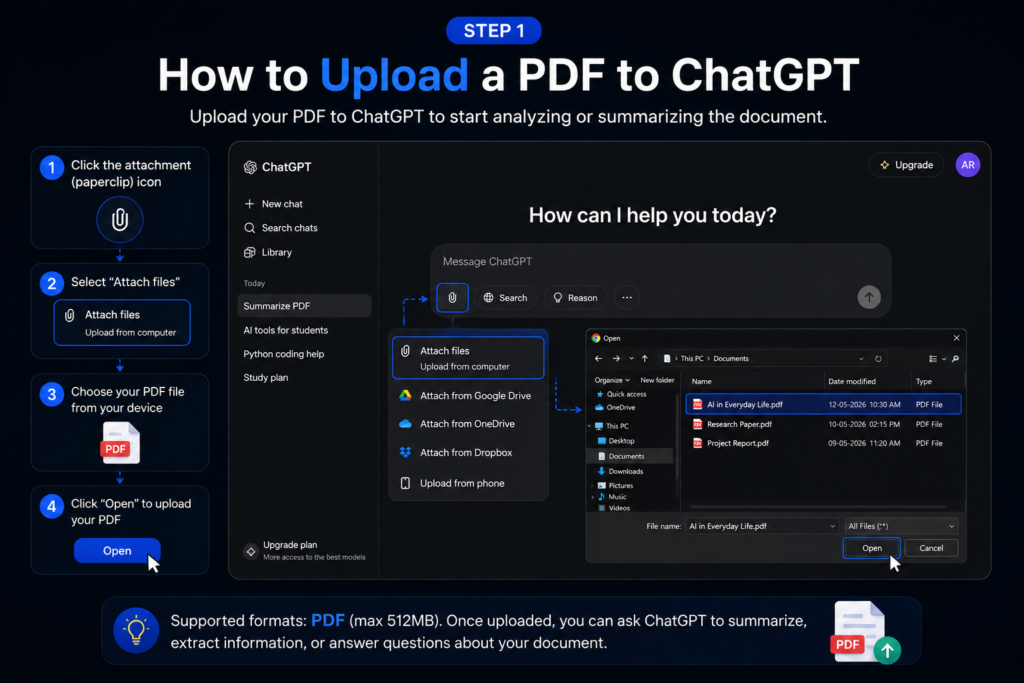
Just find the attachment or add button in the ChatGPT composer, and select your PDF.
PDF is one of those document formats that ChatGPT commonly supports, so it should be fine.
Pick the file you want summarized, then just wait until it finishes uploading.
Tip: If your document has important charts, diagrams, or pages that are scanned, keep in mind that how the PDF is handled can vary based on your ChatGPT plan, and also the document-processing approach. OpenAI notes that most standard processing on many plans is text-based, while visual retrieval for embedded PDF visuals is, at the moment , an Enterprise kind of feature.
Step 3: Ask ChatGPT to Summarize the PDF.
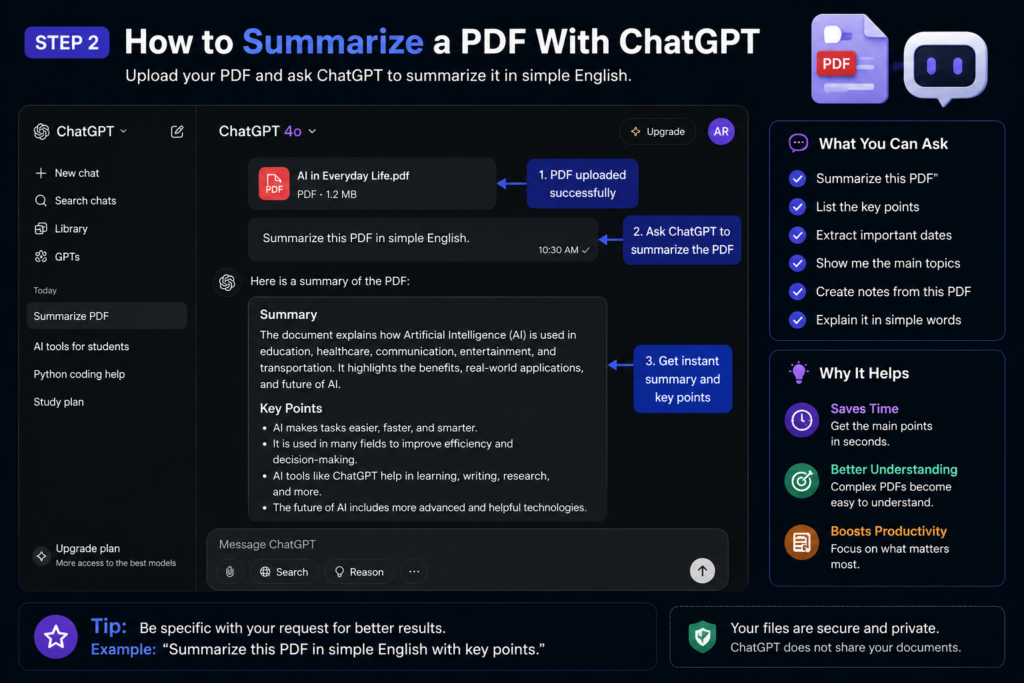
Once the PDF is uploaded, just type something along these lines, “Summarize this PDF in simple language. Include the most important points and explain any difficult terms.” Then, send it off your message.
ChatGPT will take a look at the document and make a summary.
If it’s a shorter document, you might get a pretty useful summary right away. If it’s a longer one, you should make the request more specific, like ask for key takeaways, or explain the main argument using plain words.
10 Useful ChatGPT Prompts for PDF Summaries :
If you’re wondering how to summarize a PDF with ChatGPT, simply upload your PDF and ask ChatGPT to summarize the content using these useful prompts,
Here are some useful prompts that u can copy and work in it.
- Simple summary
Summarize this PDF in simple language, and include the most important points, please. - Short summary
Give me a short summary of this PDF in 10 bullet points. - Student notes
Turn this PDF into clear study notes, using headings and bullet points. - Exam preparation
Create exam-focused notes from this PDF, and highlight the concepts I should remember most. - Chapter summary
Summarize each chapter of this PDF separately, and explain the main idea of each chapter too. - Important points
Extract the 15 most important points from this PDF, and explain each one briefly, in your own way. - Easy explanation
Explain this PDF like you’re teaching a beginner who has never studied this topic before. - Questions and answers
Create 20 questions and answers based only on the information in this PDF. - Revision guide
Turn this PDF into a quick revision guide, with key definitions, important concepts, and a few examples. - Find specific information
Find all the sections in this PDF that discuss [your topic] , and summarize them for me .
How to Get Better Results.
how to summarize a PDF with ChatGPT is a simple way to turn a long document into a shorter, easier-to-understand summary.
Basic prompt:
Summarize this PDF.
✅ Better prompt:
Summarize this PDF for a college student. Use plain English, arrange the information with headings and bullet points, and underline the ideas most relevant for an exam.
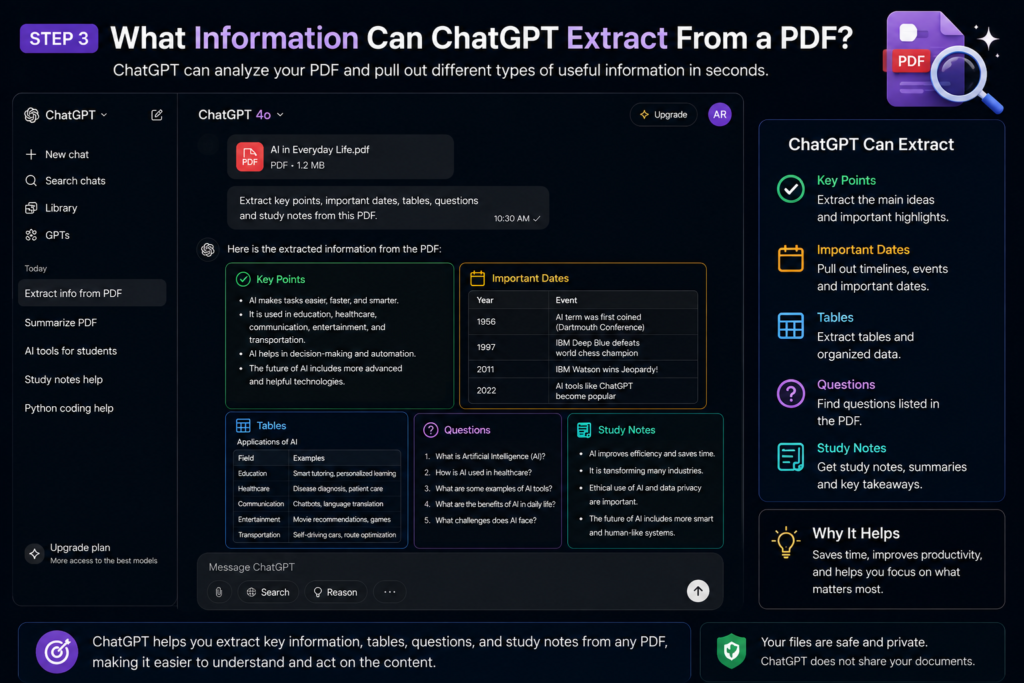
The second prompt gives more value in your prompt for better understanding for ChatGPT.
You Can Ask Follow-Up Questions.
how to summarize a PDF with ChatGPT, try this examples given below and ask ChatGPT to summarize the content.
For example,
- “Explain the third section in simple words.”
- “What are the five most important concepts from this document?”
- “Give me an example for each concept.”
How Students Can Use ChatGPT for PDF Study?
Imagine you have a 100-page study material PDF. So basically, you want to turn that one long document into several smaller study resources. And that’s where ChatGPT can help us to do this:
Step 1
Upload the PDF.
Step 2
Ask for chapter by chapter summaries, but do it in a way that’s readable.
Step 3
Ask for key definitions, the kind you actually need later not just the obvious ones.
Step 4
Ask for practice questions, and if possible include answers too, or at least hints.
Step 5
Ask for flashcards. yes, the simple spaced repetition style.
Step 6
Then ask ChatGPT to explain the topics you still don’t understand, again and again, if you have to, until it clicks.
PDF Upload Tips :
Before uploading your document, try to do this,
✅ Use a clean PDF (Text-based PDFs usually behave better for document analysis.)
✅ Let ChatGPT know what you actually need
Don’t just ask for a summary only. Instead, be a little more specific, like:
- How long it should be
- Who it’s for, like students or managers
- The format you want
- Which themes or important topics to cover
- The difficulty level
✅ Split the bigger work into smaller steps,
Try something like:
“First, summarize the chapters.”
Then:
“Next, create exam questions from those chapters.”
Frequently Asked Questions?
- Can ChatGPT summarize a PDF?
Yes. ChatGPT supports PDF uploads and can summarize documents, extract information, and answer questions about uploaded files. - Can ChatGPT make study notes from a PDF?
Yes. You can ask ChatGPT to reorganize information from a PDF into headings, bullet points, revision notes, or other formats. - Can I ask questions about an uploaded PDF?
Yes. You can ask ChatGPT to find information, explain sections, or answer questions based on the document. - Can ChatGPT summarize a long PDF?
It can work with long documents within the applicable file and usage limits. OpenAI currently lists a 512 MB per-file limit and a 2-million-token cap for text/document files, although practical results can depend on the document and task. - Is ChatGPT’s PDF summary always accurate?
No. You should verify important information against the original document, particularly when accuracy matters.
Final Thoughts:
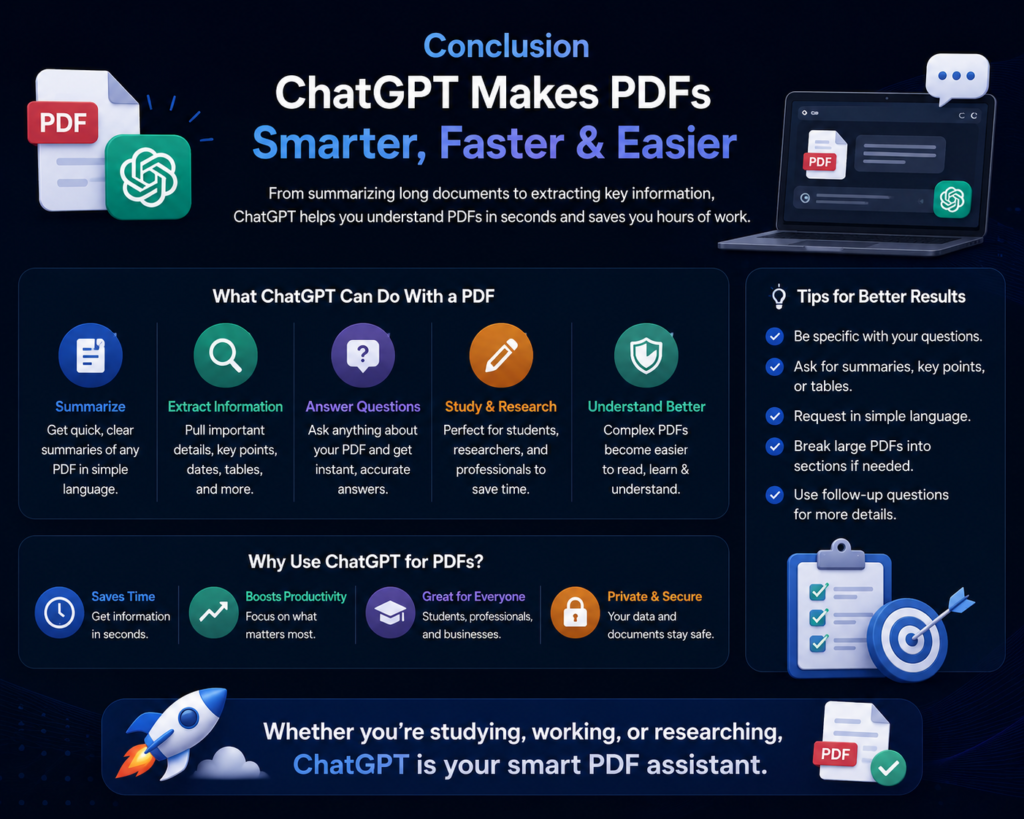
Now you know how to summarize a PDF with ChatGPT and extract useful information from long documents.
ChatGPT makes working with PDFs faster and easier, whether you want to summarize a long document, find important information, or understand difficult topics.
If you found this guide helpful, explore more useful AI tips, tutorials, and technology guides on TechWithArif to learn how AI can make your everyday tasks easier.😊
2 thoughts on “How to Summarize a PDF With ChatGPT: Easy Beginner Guide 2026”